

Integrating Deferred Deep Linking in iOS Apps
Deferred deep linking allows mobile apps to route users to specific in-app content even if the app wasn’t installed when the link was clicked – closing the attribution gap. Instead of landing on a generic home screen after install, the user is taken exactly where they were headed.
This tutorial focuses on the technical implementation using Detour – a deferred deep linking tool build with developers in mind. We will focus on the technical implementation: getting the iOS SDK running, handling the install ‘snapshot’, and passing custom data through app installation into your navigation.
Deep link vs. deferred deep link: what's the difference on iOS
A deep link routes a user directly to a specific screen in your app – but only if the app is already installed. A deferred deep link does the same, but also survives the app installation process: if the app isn't installed yet, the link preserves the user's intended destination and context, routing them to the right screen on the very first open.
In practice, every deferred deep link is a deep link, just with an extra fallback path: install → first launch → match → route. That's the flow this guide walks through step by step, and it's also why iOS needs probabilistic matching (covered later) – unlike Android, there's no install referrer to rely on, so the SDK has to reconstruct the original link from device signals after the fact.
Configuring deferred deep links: Detour dashboard setup
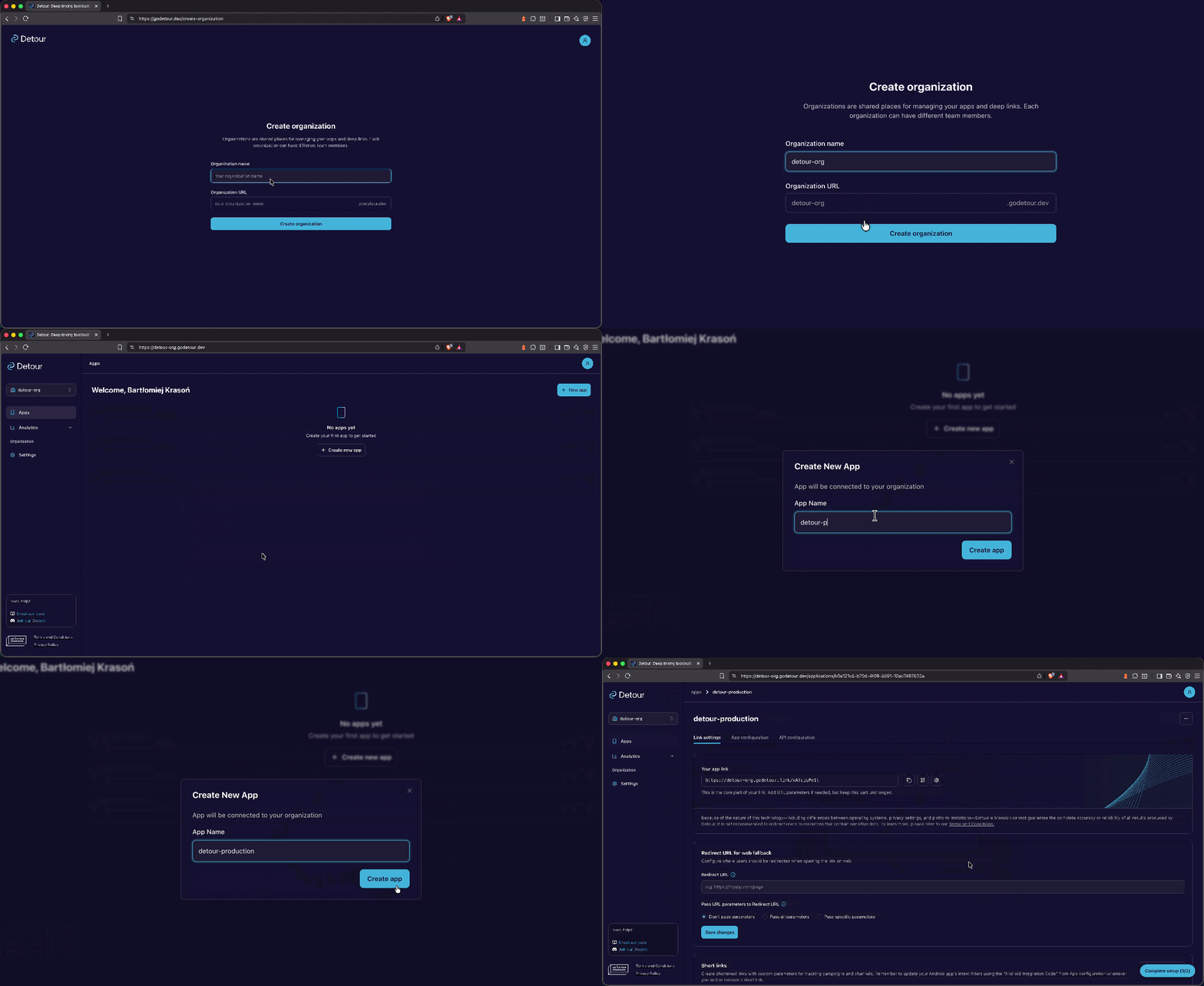
As I’ve mentioned, for deferred deep linking to work, we need a middleman to persist information between the click and the app installation. This requires simple configuration in our dashboard.
First, sign up and create an organization and your application. If you have multiple environments, we suggest creating separate apps using a naming convention like <your-app>-staging and <your-app>-production.
iOS requirements
- Bundle ID: found in your Xcode project settings under the General tab, or in the Apple Developer Portal under “Identifiers.”
- Team ID: located in your Apple Developer Account under the “Membership” section.
- App Store ID: once your app is created in App Store Connect, you can find this string under “App Information” -> “Apple ID”.
Android requirements
If your product ships on Android as well, fill in the Android card too – Detour serves one assetlinks.json per host, and an incomplete configuration is the usual reason a link opens the browser instead of the app.
- Package name: this is your applicationId, found in your app-level
build.gradlefile. - Production certificate (SHA-256): since you’re likely using Google Play App Signing, you must grab this from the Google Play Console.
- Debug certificate (SHA-256): used for testing during local development.
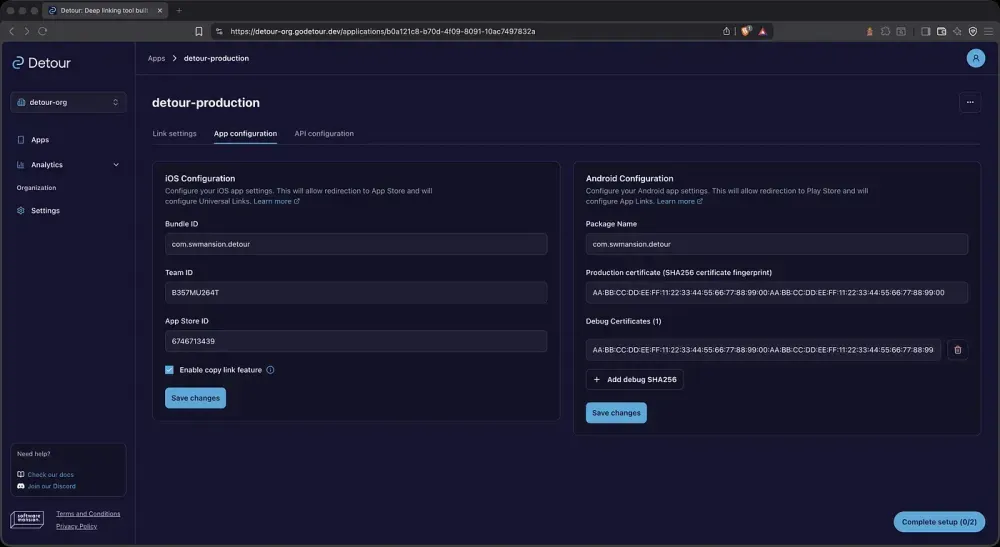
There is also an option to improve matching efficiency by using clipboard content. While not required, it serves as a common workaround for iOS privacy restrictions and helps boost accuracy in some scenarios – on iOS it is by far the most valuable optional signal you can enable.
Installing the deferred deep linking iOS SDK
This guide covers iOS; if you’re on a different stack, we have companion guides for React Native, Android, and Flutter.
The iOS SDK is a standalone Swift package. It requires iOS 13+ and Swift 5.5+.
You can install it with Swift Package Manager. In Xcode, go to File > Add Package Dependencies..., enter the repository URL https://github.com/software-mansion-labs/ios-detour, and add the Detour product to your app target.
Or declare it directly in Package.swift:
.package(url: "https://github.com/software-mansion-labs/ios-detour", from: "1.1.1")
If you’re on CocoaPods, add it to your Podfile:
platform :ios, '13.0'

target 'YourAppTarget' do
  use_frameworks!
  pod 'Detour', '1.1.1'
end
pod installThere are no extra fingerprinting dependencies to install – the device signals Detour needs for probabilistic matching are read straight from UIDevice, Locale, and UIScreen, and clipboard access is built in.
Next, for the universal links part to work, paste the integration pieces generated in the dashboard into your project. Associated domains go into your app’s .entitlements file:
<key>com.apple.developer.associated-domains</key>
<array>
  <string>applinks:<your-host></string>
</array>
And if you also want to handle custom scheme links (myapp://...), register the scheme in Info.plist:
<key>CFBundleURLTypes</key>
<array>
  <dict>
    <key>CFBundleTypeRole</key>
    <string>Editor</string>
    <key>CFBundleURLName</key>
    <string><your-bundle-identifier></string>
    <key>CFBundleURLSchemes</key>
    <array>
      <string><your-custom-scheme></string>
    </array>
  </dict>
</array>
Without those entries, iOS will not dispatch runtime links to your app at all – no SDK can work around that.
Finally, define your config once and share it across the app:
// DetourConfiguration.swift
import Detour

let detourConfig = DetourConfig(
    apiKey: "<YOUR_DETOUR_API_KEY>",
    appID: "<YOUR_DETOUR_APP_ID>",
    shouldUseClipboard: true,
    linkProcessingMode: .all
)
linkProcessingMode decides which link sources the SDK claims. .all is the default and handles universal links, deferred links, and custom scheme links. .webOnly skips custom schemes, and .deferredOnly leaves every runtime link to your own routing layer and resolves deferred links only – which is the mode you want if you already have a deep linking stack you’re happy with.
Integrating iOS deep linking with SwiftUI navigation
The library handles the fingerprinting logic, but the biggest headache for developers has always been navigation integration. Auth gates, deep nesting, weird glitches, or the same deferred link triggering multiple times – are just a few of the common pain points that come to mind.
For the sake of this example, let’s simplify the structure: we’ll use an app with a sign-in screen, as well as a tab view and an onboarding screen – both of which are protected by an auth gate.
The cold start is the part the SDK owns. Call resolveInitialLink exactly once from application(_:didFinishLaunchingWithOptions:); it checks the launch URL, then any universal link user activity, and finally falls back to asking the Detour API for a deferred match. It is session-guarded internally, so it will never run twice in one session, and it mounts analytics for you.
// AppDelegate.swift
import Detour
import UIKit

final class AppDelegate: NSObject, UIApplicationDelegate {
    func application(
        _ application: UIApplication,
        didFinishLaunchingWithOptions launchOptions: [UIApplication.LaunchOptionsKey: Any]?
    ) -> Bool {
        Detour.shared.resolveInitialLink(config: detourConfig, launchOptions: launchOptions) { result in
            Task { @MainActor in
                DetourRouter.shared.record(result)
            }
        }

        return true
    }
}
If your app is scene-based, call the connectionOptions overload from scene(_:willConnectTo:options:) instead – it does the same thing, just reading the launch payload from UIScene.ConnectionOptions.
Now you need somewhere to park the resolved link until the UI is ready to consume it.
// DetourRouter.swift
import Detour
import SwiftUI

@MainActor
final class DetourRouter: ObservableObject {
    static let shared = DetourRouter()

    /// Mirrors `isLinkProcessed`: the splash stays up until this flips.
    @Published private(set) var isLinkProcessed = false
    @Published private(set) var pendingLink: DetourLink?

    private init() {}

    func record(_ result: DetourResult) {
        isLinkProcessed = true

        // A `nil` link is a normal, organic launch — keep whatever is already pending.
        if let link = result.link {
            pendingLink = link
        }
    }

    func clearLink() {
        pendingLink = nil
    }
}
Runtime links – the ones that arrive when the app is already installed – go through processLink. In SwiftUI you get them from onOpenURL and onContinueUserActivity:
// ExampleApp.swift
import Detour
import SwiftUI

@main
struct ExampleApp: App {
    @UIApplicationDelegateAdaptor(AppDelegate.self) private var appDelegate
    @StateObject private var auth = AuthModel()

    var body: some Scene {
        WindowGroup {
            RootView()
                .environmentObject(auth)
                .onOpenURL { url in
                    handle(url)
                }
                .onContinueUserActivity(NSUserActivityTypeBrowsingWeb) { activity in
                    guard let url = activity.webpageURL else { return }
                    handle(url)
                }
        }
    }

    private func handle(_ url: URL) {
        Task { @MainActor in
            let result = await Detour.shared.processLink(url, config: detourConfig)
            DetourRouter.shared.record(result)
        }
    }
}
The interesting part is the gate. It has to wait for both the SDK and your auth layer, survive an onboarding detour without dropping the link, and — crucially — not re-fire on every state change. Modelling the whole dependency set as one Equatable value and driving it with task(id:):
// RootView.swift
import Detour
import SwiftUI

private struct GateState: Equatable {
    let isLinkProcessed: Bool
    let isLoaded: Bool
    let isSignedIn: Bool
    let isOnboardingCompleted: Bool
    let route: String?
}

enum Destination: Hashable {
    case splash
    case signIn
    case onboarding
    case tabs
    case details(route: String, params: [String: String])
}

struct RootView: View {
    @ObservedObject private var router = DetourRouter.shared
    @EnvironmentObject private var auth: AuthModel

    @State private var destination: Destination = .splash

    // Guards the "normal startup" branch so it only fires once per sign-in
    // session. Set to true after any successful navigation; reset on sign-out.
    @State private var initialNavigationFired = false

    private var gateState: GateState {
        GateState(
            isLinkProcessed: router.isLinkProcessed,
            isLoaded: auth.isLoaded,
            isSignedIn: auth.isSignedIn,
            isOnboardingCompleted: auth.isOnboardingCompleted,
            route: router.pendingLink?.route
        )
    }

    var body: some View {
        content
            .task(id: gateState) { applyGate() }
    }

    @ViewBuilder
    private var content: some View {
        switch destination {
        case .splash:
            SplashView()
        case .signIn:
            SignInView()
        case .onboarding:
            OnboardingView()
        case .tabs:
            MainTabView()
        case let .details(route, params):
            DetailsView(route: route, params: params)
        }
    }

    private func applyGate() {
        guard router.isLinkProcessed, auth.isLoaded else { return }

        guard auth.isSignedIn else {
            initialNavigationFired = false
            destination = .signIn
            return
        }

        if let link = router.pendingLink {
            initialNavigationFired = true

            // Onboarding must run once before the deep link destination is shown.
            // Keep the link alive so this branch re-fires after onboarding completes.
            guard auth.isOnboardingCompleted else {
                destination = .onboarding
                return
            }

            // Onboarding done — navigate to the link destination.
            // Clear before assigning so the re-fire caused by link→nil is a no-op.
            let route = link.route
            let params = link.params
            router.clearLink()
            destination = .details(route: route, params: params)
            return
        }

        guard !initialNavigationFired else { return }
        initialNavigationFired = true

        destination = auth.isOnboardingCompleted ? .tabs : .onboarding
    }
}
DetourLink gives you everything you need to route: route (path plus query), pathname (path only), params (parsed query as a dictionary), url (the raw string), and type, which tells you whether the link arrived as .deferred, .verified, or .scheme. In a real app you’d map pathname onto a NavigationStack path rather than a flat enum, but the gate logic stays exactly the same.
Customizing deep link iOS parameters and short links
By default, every application in our dashboard has a link assigned to it, to which you can append any URL parameters you want:
https://your-org.godetour.link/<app-id>
For example, if you wanted to redirect to a product screen, you would just append this path:
https://your-org.godetour.link/<app-id>/products/42
And if you wanted to let’s say track a marketing campaign, you would add the UTM properties like that:
https://your-org.godetour.link/<app-id>/products/42?utm_source=SP&utm_origin=web&utm_screen=header
Everything after the app hash lands in link.route, and the query string is parsed into link.params for you.
Keeping the link clean
While this manual approach is highly flexible, adding too many parameters can result in long, unwieldy URLs that aren’t ideal for public-facing content.
The solution is to create a short link within our management panel. This allows you to predefine your parameter list and condense the entire string into a clean, professional-looking hash that is much easier to share.
Testing deferred deep links in iOS
Verifying this flow is straightforward, though there are a few platform-specific nuances to keep in mind:
- Store presence: your application must be available on the App Store to successfully complete the required redirect chain.
- Probabilistic matching: iOS has no install referrer, so every match is scored from device signals rather than looked up directly.
- First launch only: deferred matching runs on the first launch after install, so reinstall the app between test runs.
With all these considerations in place, you can just test your link by opening it in your browser, or by scanning the QR code from our panel.
For simulator commands plus a troubleshooting checklist, see the testing docs.
Handling web fallback for iOS universal links and deferred deep links
While this process is optimized for mobile apps, you may wonder what happens when a user clicks a link on a desktop browser. By default, users are redirected to the App Store; however, if you have a relevant website, you can configure it as a fallback URL. Furthermore, if your links include specific attribution parameters – such as a chat invitation ID – you can choose to pass these through to your web platform and handle everything in there as well.
Improving deep link matching accuracy and time window
In some cases, the matching score might not be high enough for the process to succeed. While the default value is 850, you can always adjust this in our panel if there is a high probability that certain attribution parameters might not be captured properly.
The same flexibility applies to the matching time window – the duration between the initial user click and the matching process once the app download is complete. By default, this is set to 15 minutes, which is typically sufficient for a standard installation, but the setting is customizable to fit your specific case.
Have any questions? The Detour team is here to help
We’re building Detour specifically for developers, which means your feedback is our roadmap. If you have questions or feature ideas, please reach out to us:
- On our Discord
- Directly through our email – contact@godetour.dev
And if there are any technical details you are interested in, check out our documentation and examples.